Viewing Session Data
Each Activity run has the ability to capture robust data for IEP teams. The following steps will show you how to access your student’s eye detection heat-map, forward facing camera recording, screen recording, and touch heat-map.
*If after following these steps, you are not seeing a specific file, please check your iOS settings to ensure all recording privileges have been turned on. If these are on and you are still not seeing the data, from your CViConnect PRO iPad app, check for data in the queue. Your iPad is most likely still working on sending those files to your web-based dashboard. This send time can vary based on internet speeds, Activity session length, and Activity session file size.
Instructions
-
Sign in to the CViConnect PRO Dashboard
You will need to sign in using your unique user ID and password.
-
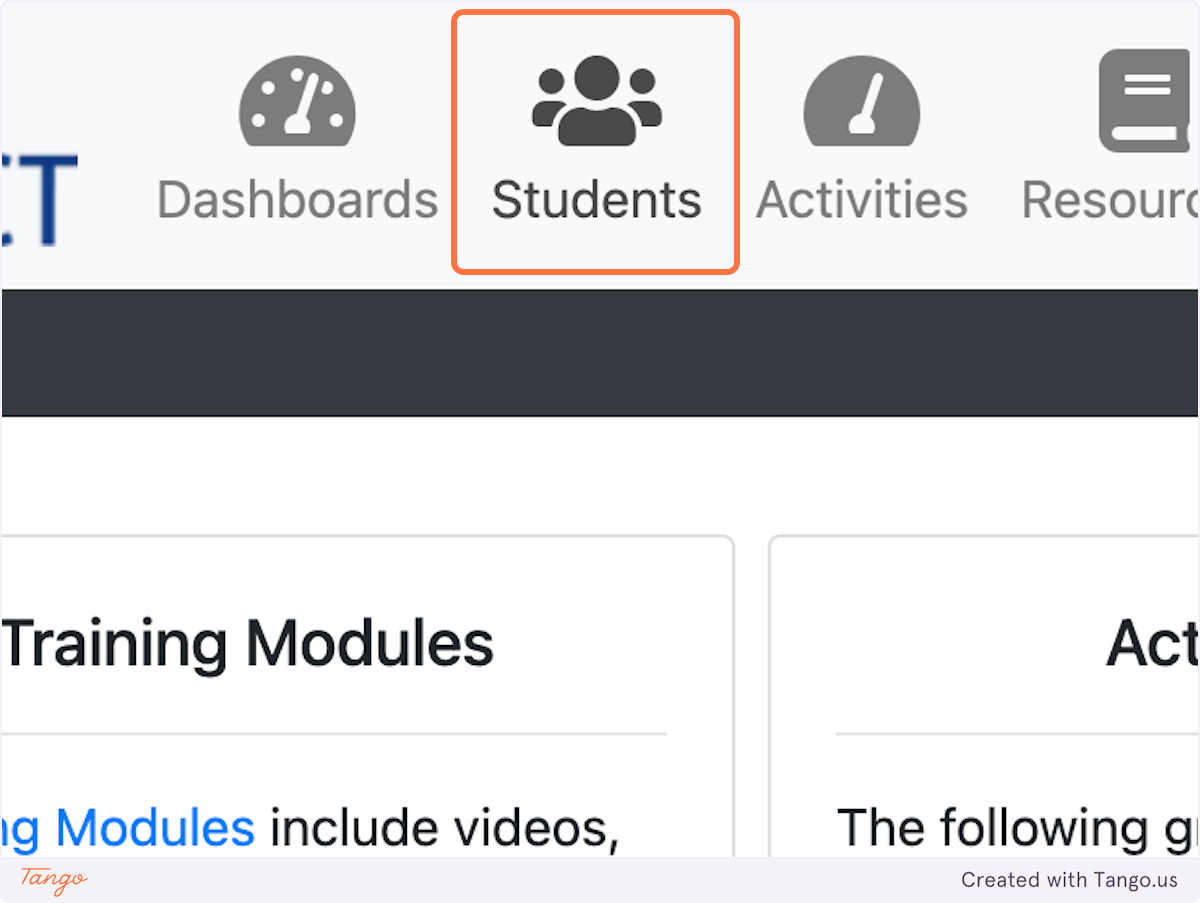
Click on Students
-
-
Select a Student
-
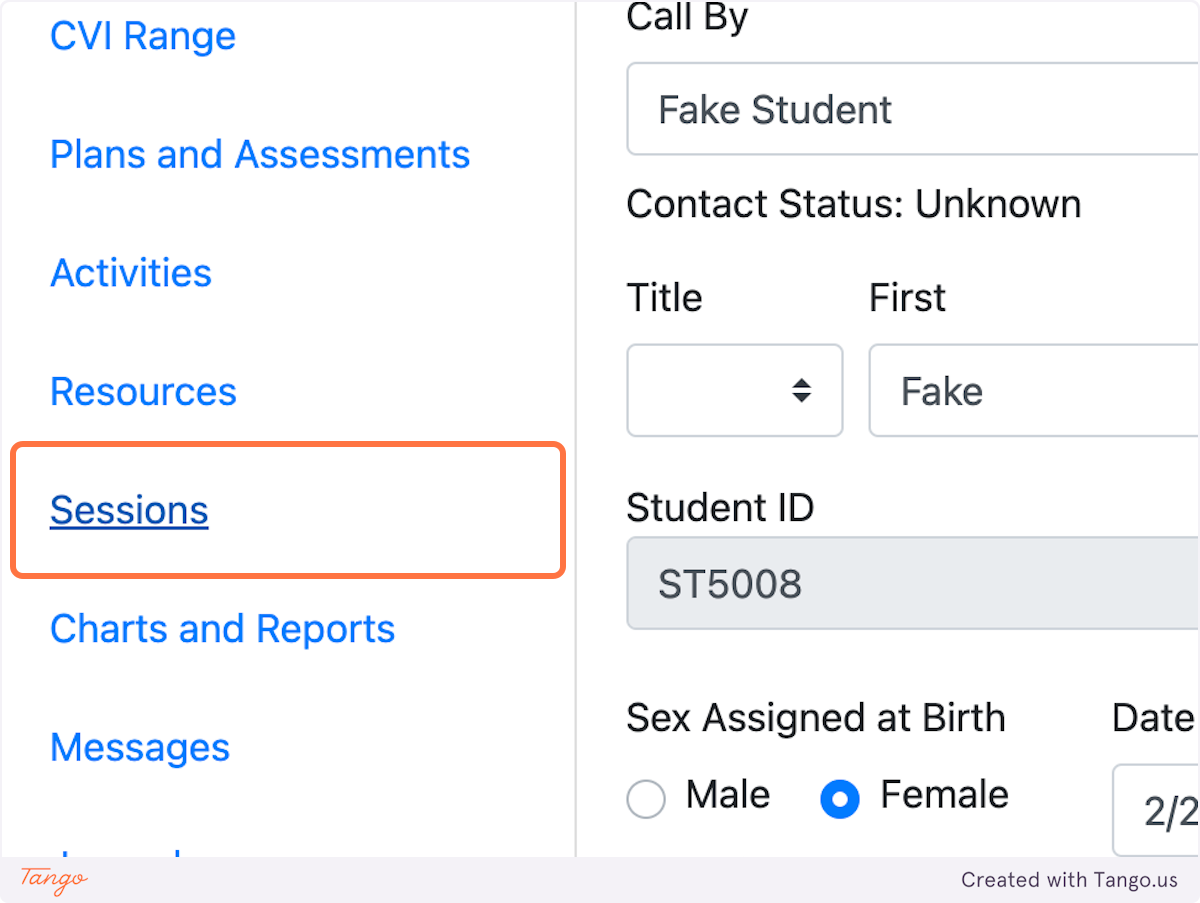
Click on Sessions
From the Student Notebook menu, select the menu item labeled ‘Sessions
-
-
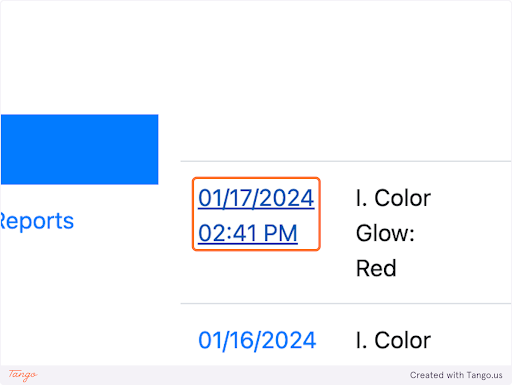
Select a session
Click the date and time link for the session you’d like to review
-
-
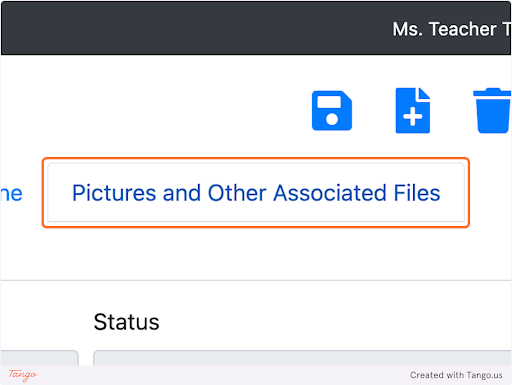
Click on Pictures and Other Associated Files
-
-
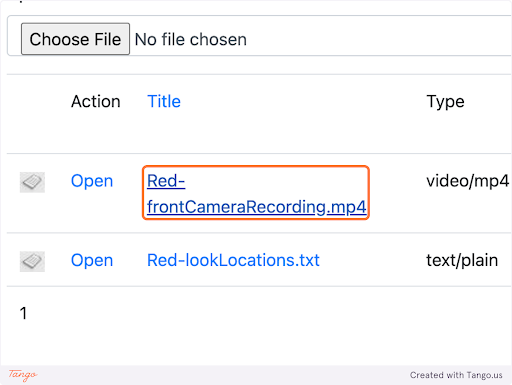
Click on a file to open
Here you will have a few files to choose from.
i.) A heat-map illustrating where the student looked (ending with heatMap.png).
ii.) A video file from the forward facing camera of the iPad (ending with frontCameraRecording.mp4).
iii.) A video file of what was being displayed on the screen during the activity session (ending with screenGrab.mp4)
iiii.) A heat-map illustrating where the student touched the iPad during the activity session (tapMap.png)
iv.) The final file is a text file. This is a list of data points captured for internal use
-